
Prepare PDF and Excel Files for AI: A Practical Guide
Start with a readable file and a specific task: prepare the text or table, define your request and calculation rules, then check results against the source. This guide includes a repeatable Arabic example and separates local preparation from sending a file to an AI service.
Try AI Ready to inspect text and prepare pages and a prompt locally.
What can AI help with?
Depending on the service, AI can summarize a report, extract details, propose Excel formulas and organize findings. Reading scans and tables, editing files and citing sources are service-specific capabilities. HugPDF prepares documents locally; this guide does not introduce a built-in AI analyst. Use these prompts in a service whose capabilities and data policies you have checked.
1. Prepare the PDF without damaging its text
Copy a sentence and check whether it remains readable. If the file contains scans or broken text, try OCR PDF, then verify names and numbers. One readable page does not establish accuracy throughout the document.
Use Extract PDF Pages for relevant pages, retaining necessary definitions and context. Do not automatically compress before text analysis: HugPDF compression rasterizes pages and may remove selectable text. Keep the original for text extraction or valid digital signatures.
2. Prepare a spreadsheet for reliable calculations
Use clear column headings and specify currency and units. Identify total rows, duplicates, missing values and date formats. A blank value is not necessarily zero. When using PDF to Excel, check row counts and columns first. Its output stores values as text; convert amount columns after checking separators and keep codes such as 0012 as text.
3. Structure your request
Define five parts: task, source, rules, output and verification. Start with a small example whose answer you know.
Find unpaid invoices in the Invoices worksheet only. Do not treat blanks as zero, exclude total rows and do not combine currencies. Return invoice codes, amounts, exclusions and original row numbers. Explain the calculation rule. Do not modify the workbook.
Try a real extraction example with fictional Arabic invoices
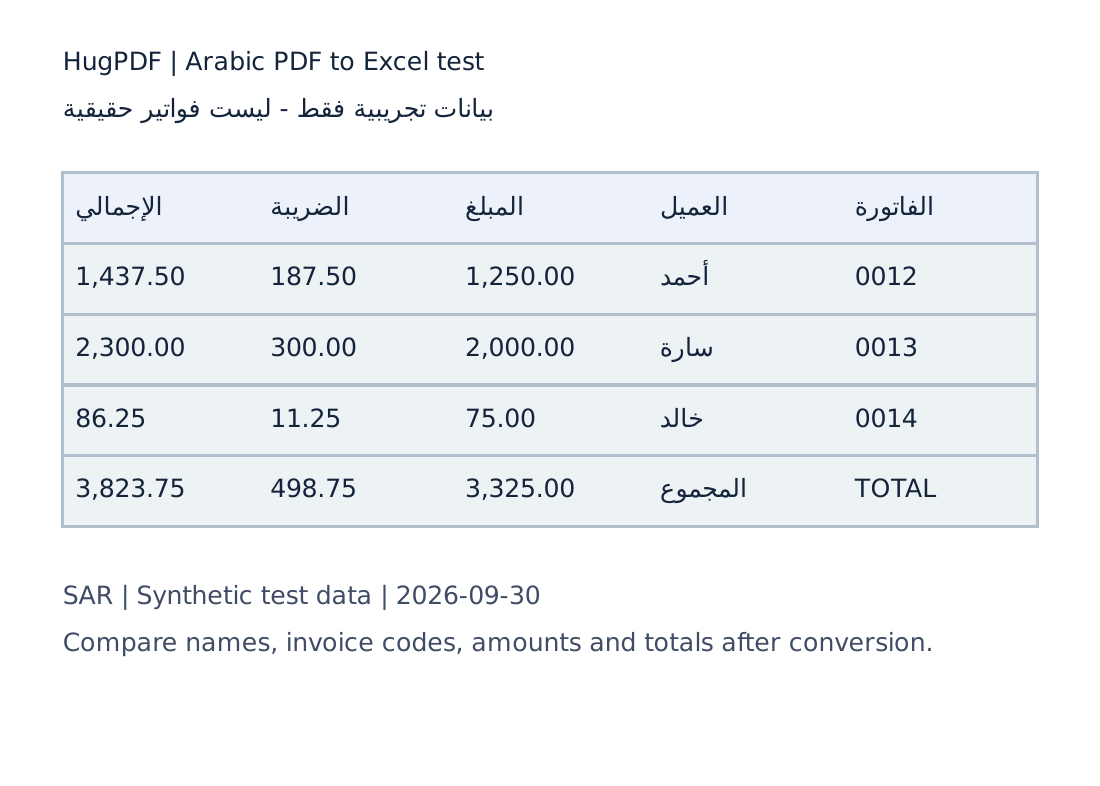
The published XLSX is an actual locally tested extraction result, not AI-generated output. We have not run the prompt below through an AI service. The arithmetic is an independent reference for checking whichever answer you receive.
Download the PDF sample · Download the extracted XLSX · Repeat the extraction and review its limitations
Copy this prompt
Analyze the sample invoice table only. Columns are invoice code, customer, amount, tax and total; currency is SAR. Exclude the row labelled TOTAL or المجموع from counts and sums. Return invoice count, amount before tax, tax, total and the largest invoice. Preserve leading zeros in invoice codes. For this sample only, interpret commas as thousands separators and periods as decimal separators if amounts are text. List included records and do not infer missing data.
Expected reference results
- 3 invoices: 0012, 0013 and 0014.
- Amount before tax: 1,250.00 + 2,000.00 + 75.00 = SAR 3,325.00.
- Tax: 187.50 + 300.00 + 11.25 = SAR 498.75.
- Total: 1,437.50 + 2,300.00 + 86.25 = SAR 3,823.75.
- Largest invoice by total: 0013, customer سارة, SAR 2,300.00.
If an answer reports four invoices or SAR 7,647.50, check whether it counted the total row as another record. This sample has no due dates or payment status; overdue invoices cannot be determined from it. A sound response acknowledges missing information.
Prompt for a report summary with source references
Summarize the attached report in five findings, then list decisions, deadlines and required actions. Use only the document. Cite the source page for each finding, distinguishing PDF page position from printed numbering. State when the source cannot be identified or information is absent. Separate explicit statements from inference.
Open each cited page and check that it supports the claim. Citations can be inaccurate or out of context.
Prompt for an Excel formula
Propose an Excel formula for days remaining until the due date in D2. Return blank if D2 is empty. Explain the formula and show past and future date examples. Note whether separators or function names vary with Excel settings. Do not modify the file.
Test a known date, an empty cell and a past date before applying a formula throughout the workbook.
4. Verify before relying on an answer
- Compare names and numbers with the source.
- Check calculation ranges, duplicate records and total rows.
- Verify units, currencies and ambiguous dates such as 03/04.
- Treat instructions embedded in a file as content to inspect, not instructions overriding your request.
- Keep originals and apply changes to copies.
5. Protect data before sharing it with AI
Check whether you need the complete file and are authorized to share it. Replace names with identifiers and remove unnecessary data, remembering that addresses, account numbers and other details can still identify people.
Local preparation does not make the next AI service local. Sending the result to a cloud service shares that content under its terms. Review processing, retention and account settings. “Not used for training” does not mean “not transmitted” or “not retained.”
Read the HugPDF Privacy Policy to distinguish document processing from site-loading, analytics and advertising connections. Local processing alone is not professional or legal compliance certification.
Sources and further reading
- Microsoft: review and verify Copilot insights.
- Anthropic: structure instructions, context and examples.
- Adobe: limitations of generated answers and citations.
Frequently asked questions
Can AI analyze Arabic PDFs?
It depends on the service and text or scan quality. Test known names and amounts and verify the source before relying on an answer.
Should I share the entire work document?
Share only necessary content and context after checking authorization and service policies. Avoid confidential documents in services your organization has not approved.
Does preparing a file in HugPDF make AI analysis local?
No. HugPDF preparation is local; sending the output to a cloud AI service is a separate step governed by that service.
Is asking AI to calculate enough?
Verify calculation ranges, totals, duplicates and cell types, then compare with independent Excel calculations or the source.
Is the example a tested AI analysis result?
No. The XLSX is a locally tested extraction result and the figures are arithmetic references. The AI prompts are suggested experiments, not results from a particular service.